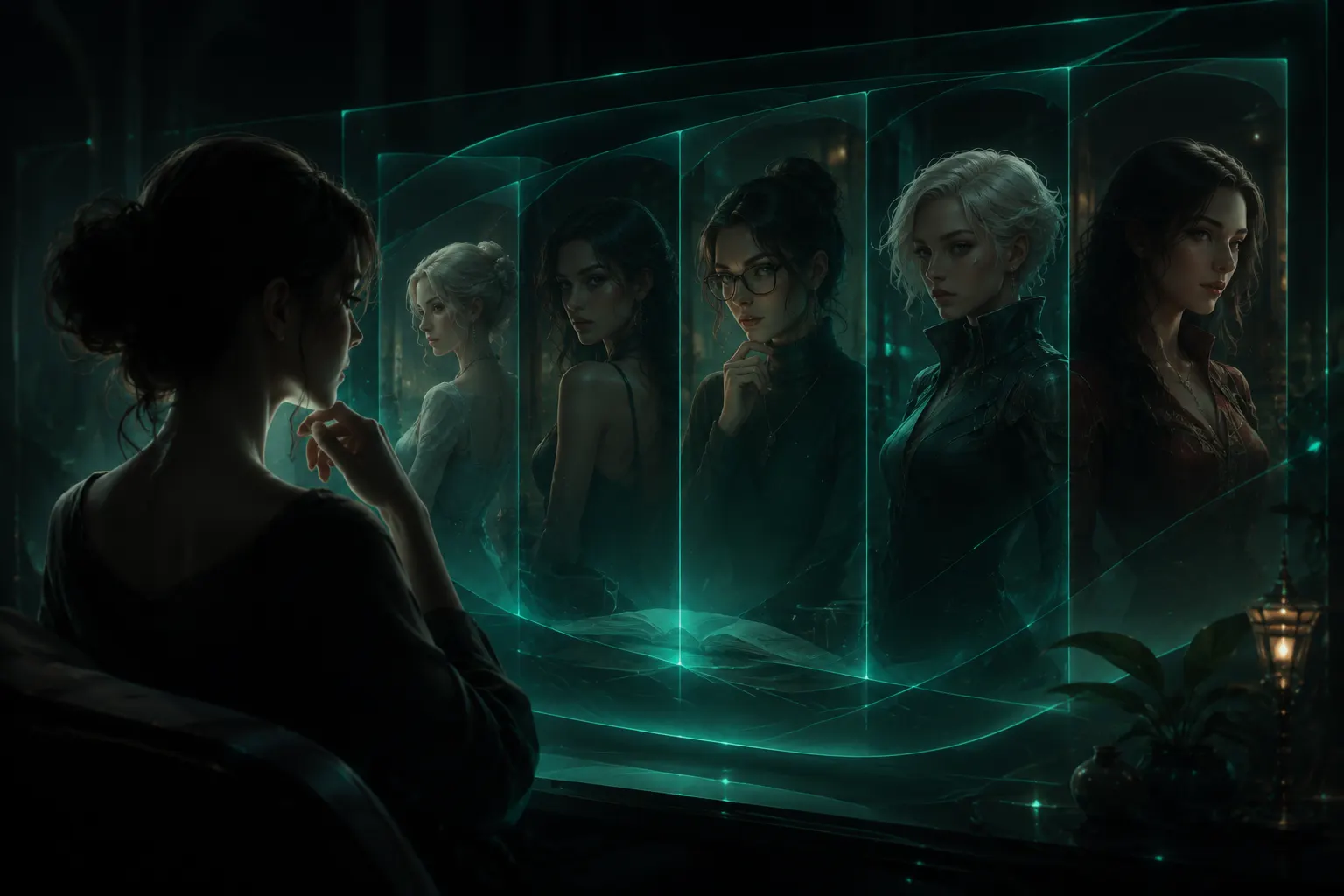
Turn Your Swerve Story into Scene Images and Videos
Create images from saved chat messages, animate them into silent short videos, and manage automatic generation, media credits, and private chat backgrounds.
When you want to keep a moment from a character chat, you can turn a saved message into a scene image. If you want movement, use a finished image as the starting frame for a short video.
Swerve keeps these works in a private media library for the character. You can return to the story while generation runs, look through the results later, and choose an image or video as your chat background.
Scene generation is available in supported one-on-one character chats. Manual generation starts from a message action, while automatic generation is controlled in Scene studio.
Start with a moment you want to see
Choose a saved story message and select its scene-image action. You can use a completed character reply or a saved message from your side of the conversation. An opening that has not been saved and a reply that is still being written do not offer this action.
The confirmation panel shows the chosen moment, the character reference, image settings, and the media-credit cost. You can add a short visual detail if needed. You do not have to rewrite the whole scene as an image prompt.
Swerve uses the selected message and nearby earlier conversation, together with relevant character details and your Persona, to prepare the image. A character portrait can guide appearance, although a reference does not guarantee an exact match in every result.
Choose the model and aspect ratio offered in the panel, review the price, and confirm. Opening the panel or browsing the media library does not start a paid generation.
Give a finished image some movement
Open an image that has finished generating and select Generate video. Set the duration and resolution, check the quoted cost, and confirm.
The image becomes the first frame. The video aims for gentle character and environmental movement while keeping the scene's composition and style. The current videos are silent and use a fixed camera, rather than producing a sequence of different shots.
This route starts from your completed character image. It does not accept an arbitrary external image link as the starting frame.
Turn automatic generation on when you want it
Open Scene studio from the character chat to find separate switches for automatic images and automatic videos. Both are off by default. Turning one on opens a confirmation that explains the continuing cost.
After you confirm, the selected mode follows newly completed character replies. It does not process your old chat history or turn greetings and your own messages into automatic works.
| Setting | What happens after a new character reply |
|---|---|
| Images on | Create a scene image |
| Videos on | Create a starting image, then a short video |
| Both on | Use the same scene image as the video's first frame |
When both modes are on, the shared first image is not charged twice. The settings follow you across stories with the same character, so check the switches when you move between those stories.
Turning a switch off stops new automatic work. Tasks that have already started can continue. If the balance is insufficient or the price changes, automatic generation pauses and needs your confirmation before you turn it back on.
Keep media credits and chat credits separate
Images and videos use media credits. The quote changes with the selected model and video settings, and appears before you confirm a manual generation or enable an automatic mode.
Video generation includes an image stage and a video stage. If the image succeeds but the video fails, the image remains in your library and its image cost still applies. The video portion follows the task's confirmed failure and credit-release status. Check the task before starting another paid attempt.
Find your works and choose a background
Open the media library from Scene studio. It brings together your works from different stories with the same character, with image, video, and story filters where available.
The works stay private to your account. They are not automatically posted to a public feed. From a finished work, you can preview it, download it, or select Set as background.
Backgrounds are chosen manually. Generating a new image does not replace the current background. A video background plays silently in a loop, with a still-image fallback when playback is unavailable. Restoring the default background keeps the work in your library.
For your first image, return to a character chat, pick a saved moment, and review its generation panel before confirming.
More Posts
Get to Know Your Character Through Diaries in Swerve
Learn where to find character diaries, when new entries become available, how free and paid reading work, and what we plan to improve next.

How Companion Levels and Gifts Work in Swerve
Understand companion EXP, level milestones, character diaries, gifts, and how Swerve plans to develop deeper character interactions over time.
How to Use Your i2v Balance for Swerve Chat
A simple guide to adding an i2v API key to Swerve so your character chats use your i2v balance instead of Swerve credits.